Customer feedback highlighted a difficult but common reconciliation problem: a purchase invoice can contain incorrect totals, inconsistent tax amounts, or other calculation issues and still appear in GST portal records. Previously, strict validation could prevent teams from recording that document exactly as received.
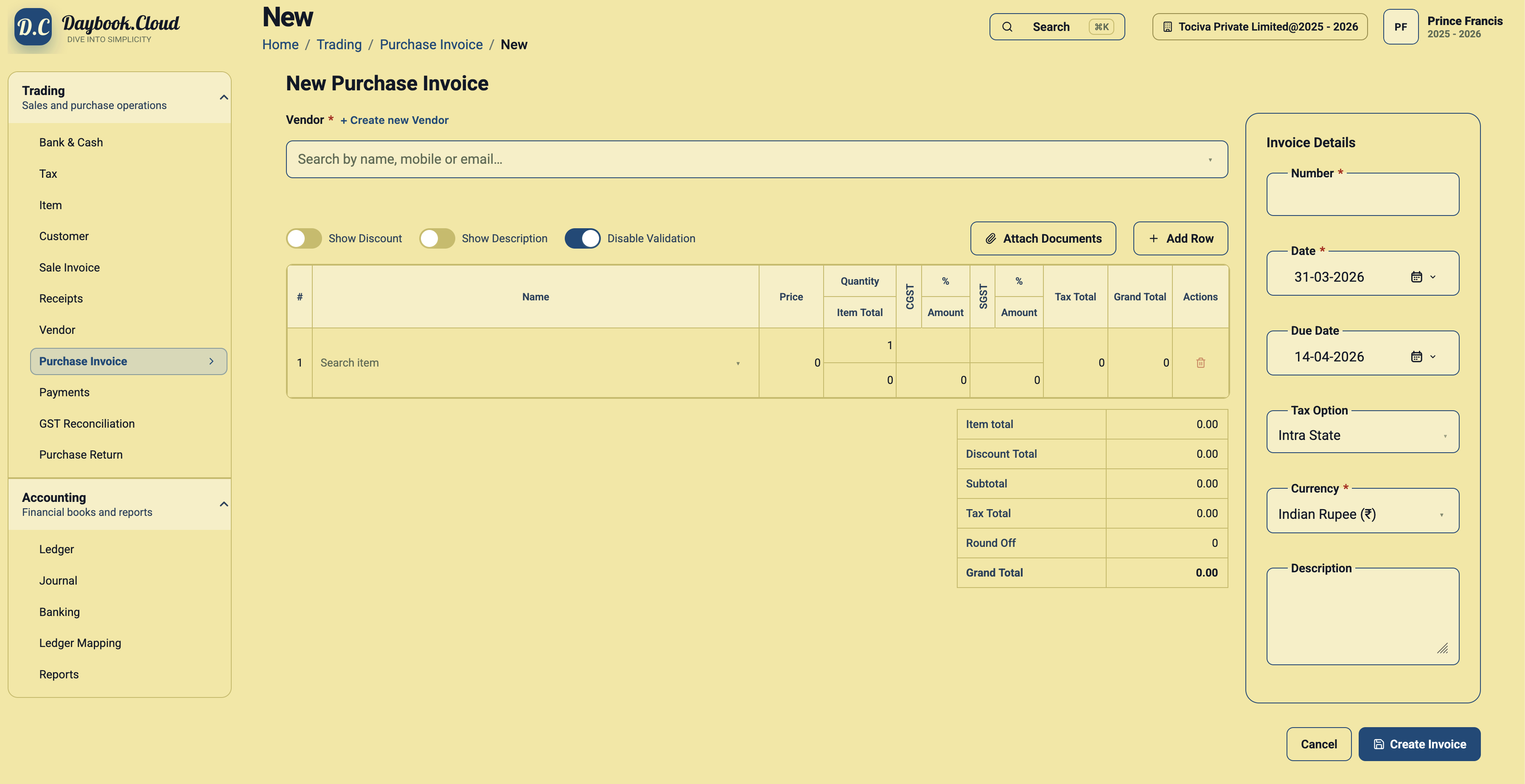
Daybook.Cloud now provides a Disable Validation option on the new purchase invoice form. It allows the source invoice to be preserved without changing its values merely to satisfy Daybook.Cloud's normal validation rules.
Why we added this option
Reconciliation depends on comparing the supplier document, GST portal data, and your books. Correcting the source values during entry can hide the original discrepancy and make that comparison harder. This option lets teams retain the invoice as evidence, investigate the mismatch, and follow up with the supplier while preserving a clear audit trail.
When to use it
- The supplier invoice contains an incorrect grand total.
- The taxable value and tax amounts do not reconcile.
- CGST, SGST, or IGST values are inconsistent with the invoice calculation.
- The document appears in GST portal records and must be captured as-is for reconciliation.
How to use it
- Open Trading > Purchase Invoice and create a new invoice.
- Enter the vendor, invoice details, line items, totals, and tax values exactly as shown on the source document.
- Turn on Disable Validation.
- Attach the original supplier invoice and create the purchase invoice.
Use this exception deliberately
Keep validation enabled for normal purchase-invoice entry. Disable it only when preserving the original document is necessary, and attach supporting evidence so reviewers understand why the inconsistent values were retained. This option records the discrepancy; it does not correct the supplier invoice or determine its tax validity.