A product can need different tax treatment depending on where the customer is located. For example, an intra-state customer may need CGST and SGST, an inter-state customer may need IGST, and an export customer may need an export or zero-rated tax setup.
The simplest way to handle this in Daybook.Cloud is to create each tax once, give it a clear name, and reuse it when making invoices or tax groups.
Before you start
Keep these details ready for each tax you want to create:
- Name: The full tax name, such as IGST 18% or CGST 9%.
- Short Name: A short label, such as IGST, CGST, SGST, or EXPORT.
- Rate (%): The tax percentage. Use 18 for 18%, 9 for 9%, and 0 for zero-rated export tax.
- Applied To: Use 100 when the tax should apply to the full taxable item value.
- Description: A note that helps your team understand when to use the tax.
Step 1: Open the Tax page
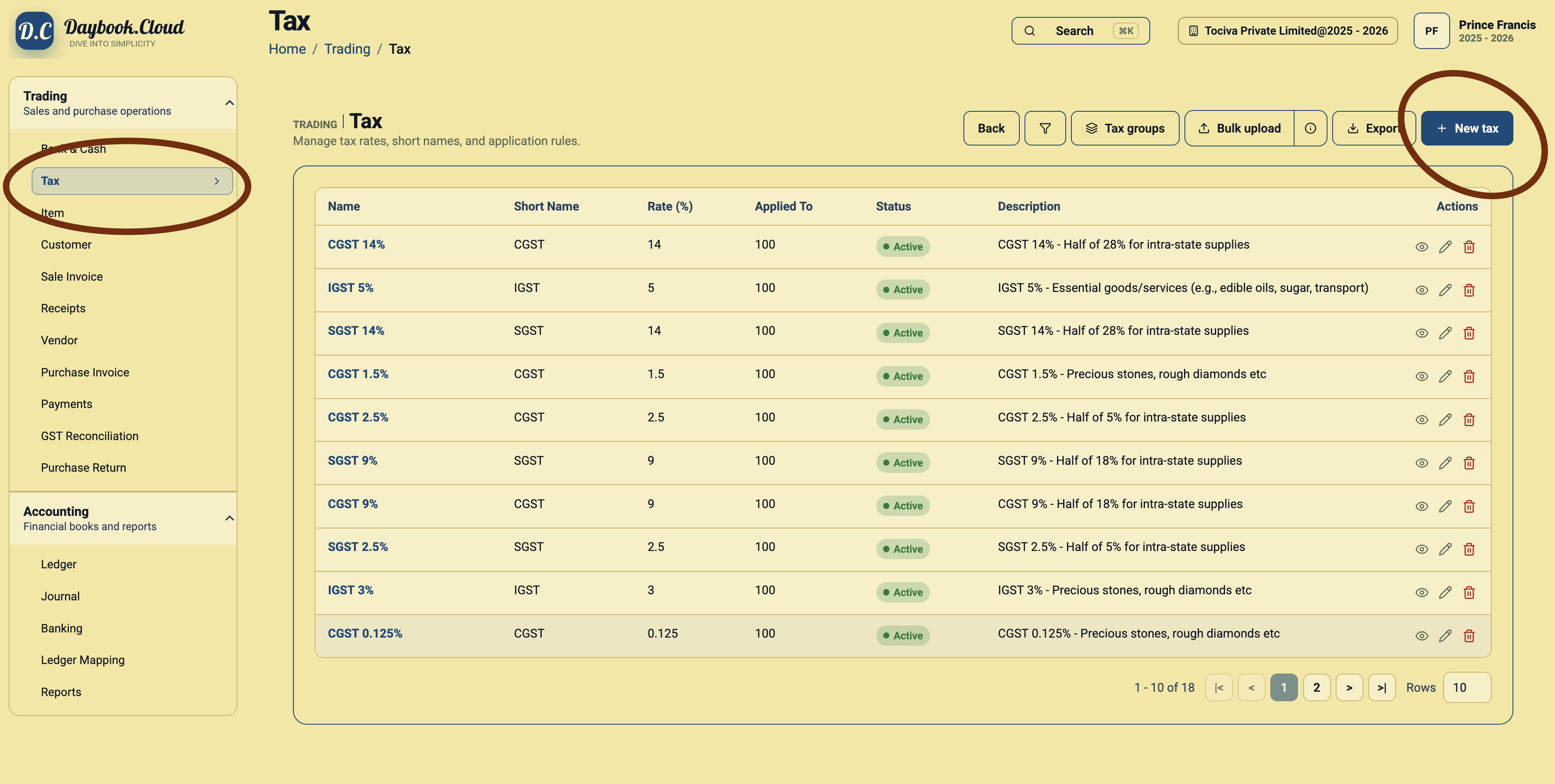
In Daybook.Cloud, go to Trading and select Tax from the left menu. This page lists the taxes already created in your company.
Step 2: Click New tax
Click the New tax button at the top right of the Tax page. Daybook.Cloud opens the Create Tax form.
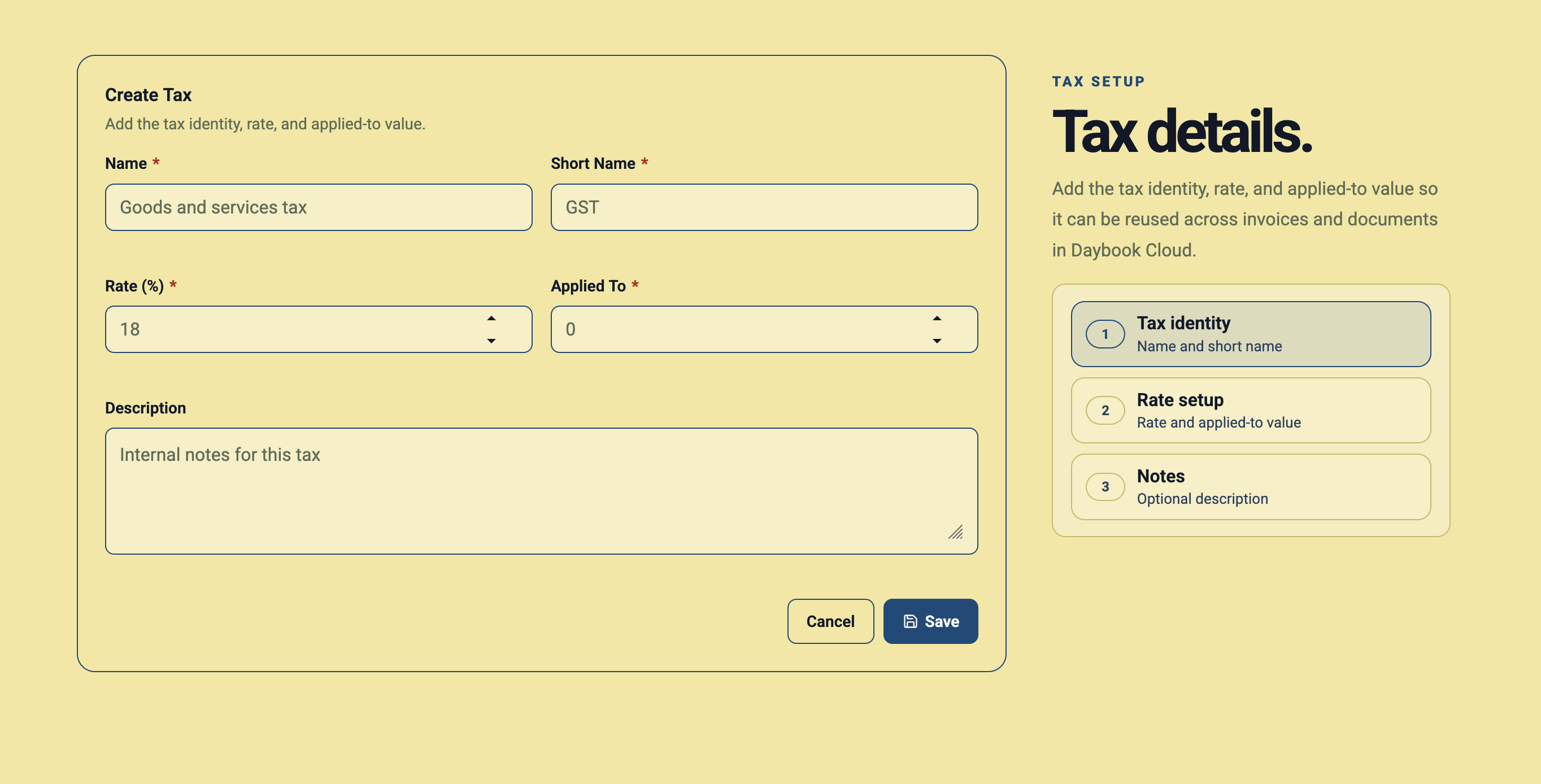
Step 3: Fill the Create Tax form
The form asks for the tax identity, rate, applied-to value, and an optional description.
Example: IGST 18%
- Name: IGST 18%
- Short Name: IGST
- Rate (%): 18
- Applied To: 100
- Description: IGST 18% for inter-state supplies
Example: CGST 9% and SGST 9%
For an intra-state 18% tax setup, create two separate taxes: one for CGST 9% and one for SGST 9%.
- CGST Name: CGST 9%
- CGST Short Name: CGST
- CGST Rate (%): 9
- SGST Name: SGST 9%
- SGST Short Name: SGST
- SGST Rate (%): 9
- Applied To: 100 for both taxes
Example: Export tax
If your accountant wants exports recorded as zero-rated, create a tax that is easy to identify on invoices.
- Name: Export 0%
- Short Name: EXPORT
- Rate (%): 0
- Applied To: 100
- Description: Zero-rated export supply
Step 4: Save the tax
After filling the fields, click Save. The tax will appear in the Tax list. Repeat the same process for every tax rate you need.
Step 5: Create taxes for each customer-location case
Most businesses should create separate tax records for common cases:
- Inter-state sale: IGST, such as IGST 5%, IGST 12%, IGST 18%, or IGST 28%.
- Intra-state sale: CGST and SGST split, such as CGST 9% plus SGST 9% for an 18% total tax.
- Export sale: Export 0% or the export tax setup advised by your accountant.
Step 6: Use clear descriptions
Descriptions are internal notes. Add simple notes such as Half of 18% for intra-state supplies or Essential goods and services. Good descriptions help your team choose the correct tax later.
Step 7: Review before using taxes on invoices
Before creating live invoices, review the Tax list and confirm that the name, rate, applied-to value, and description are correct. A small typing mistake in the rate can affect every invoice that uses that tax.
Simple checklist
- Create IGST taxes for inter-state customers.
- Create CGST and SGST taxes for intra-state customers.
- Create export tax records for export customers.
- Use Applied To as 100 for taxes applied to the full item value.
- Write descriptions that explain when each tax should be used.
- Ask your accountant to confirm rates before using them on invoices.